CLI Manager
CLI Manager: streamline AI coding with unified CLI management.

English
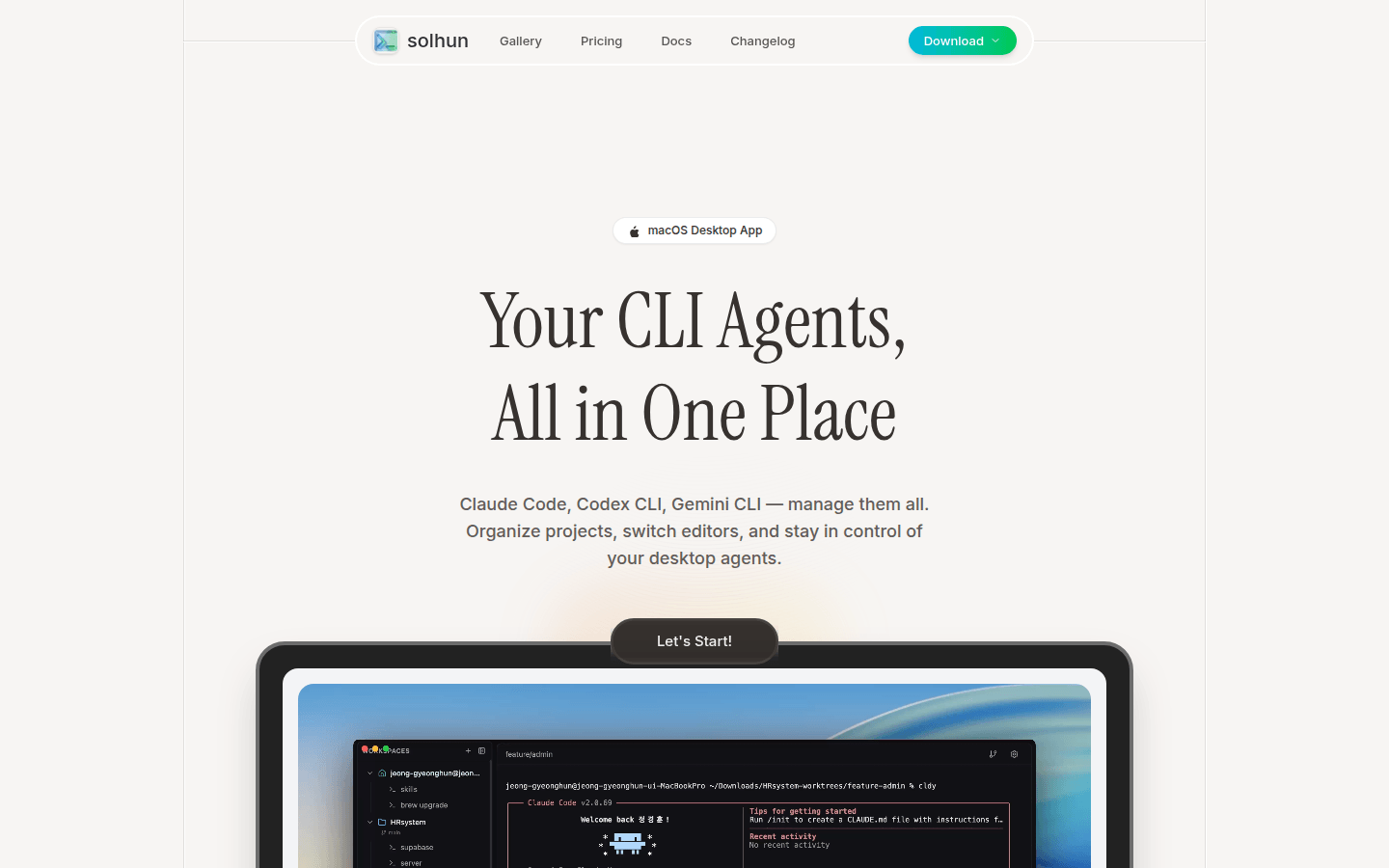
CLI Manager is a command line interface (CLI) agent management tool specially built for developers. Its importance lies in solving the problem of developers frequently switching terminals and losing context when using multiple AI coding assistants. The main advantages include gathering all CLI agents into a powerful workspace for easy management and operation; allowing developers to rename and assign roles to each agent, making the multi-agent workflow more intuitive; and supporting quick editor switching to reduce the friction of context switching. The product background is that with the increase in AI coding assistants, developers need a unified management tool to improve efficiency. There is no price information mentioned on the page. This product is positioned to help developers optimize AI-driven development workflow and improve development efficiency.
Demand group:
["Multiple AI agent developers: This type of developers usually need to use multiple AI coding assistants at the same time to complete different tasks. CLI Manager can centrally manage these assistants to avoid switching between different terminals and improve development efficiency.", "Developers who need to switch editors frequently: For those developers who need to switch between different editors, CLI Manager 's quick editor switching function can reduce the friction of context switching and make the development process smoother.", "Developers who focus on project organization and management: CLI Manager allows developers to name agents, assign roles, and organize projects, which is very useful for developers who focus on project management and workflow, making the development process more orderly and efficient. "]
Example of usage scenario:
When developing a large website, front-end developers use Claude Code for code generation, Codex CLI for code optimization, and CLI Manager to uniformly manage these two agents to improve development efficiency.
When building APIs, back-end developers use Gemini CLI for intelligent prompts and error checking, and Codex CLI for code reconstruction. They use CLI Manager to easily switch and manage the two agents to ensure the smooth progress of the project.
When developing a complete application, full-stack developers need to handle front-end and back-end development tasks at the same time. They use CLI Manager to manage Claude Code, Codex CLI, and Gemini CLI, and quickly switch agents according to different task requirements to improve the overall efficiency of development.
Product features:
Centralized management of all CLI agents: Multiple AI coding assistants such as Claude Code, Codex CLI and Gemini CLI can be viewed and managed simultaneously in a unified interface, eliminating the need to frequently switch between different terminals, greatly improving work efficiency.
Name and assign roles to agents: You can rename each CLI agent so that its name better reflects its purpose, and assign it a specific role, such as front-end development, back-end API, or design review, making multi-agent workflows more intuitive and orderly.
Quickly switch editors: Support one-click switching between Cursor, VS Code or other editors, and you can pre-configure your favorite editor to achieve seamless switching of projects and avoid the problem of context loss caused by switching editors.
Easily manage Git work trees: You can easily manage Git work trees, help developers handle multiple branches and versions of code more efficiently, and improve the efficiency of code management.
Tracking project ports: It can track port information across projects, allowing developers to understand the running status of the project at any time and avoid problems such as port conflicts.
Use terminal templates to start complex workflows: Provide terminal template functions, developers can quickly start complex workflows through templates, reducing the time and errors of manually entering commands.
Usage tutorial:
Step 1: Visit the product official website https://solhun.dev, click the download button, and select the appropriate version according to your operating system (such as macOS Apple Silicon ARM64, macOS Intel x64, etc.) to download and install.
Step 2: After the installation is complete, open the CLI Manager application and enter the main interface.
Step 3: Add the CLI agents that need to be managed in the main interface, such as Claude Code, Codex CLI, Gemini CLI, etc.
Step 4: Rename each CLI agent to better reflect its purpose and assign it the corresponding role, such as front-end development, back-end API, etc.
Step 5: Configure your favorite editor so you can quickly switch when needed.
Step 6: During use, you can activate or deactivate the corresponding CLI agent at any time according to project needs, use terminal templates to start complex workflows, manage Git work trees and track project ports, etc.