Motionik
Create professional screen recordings quickly with Motionik—easy, powerful, and perfect for tutorials, demos, and more.

English
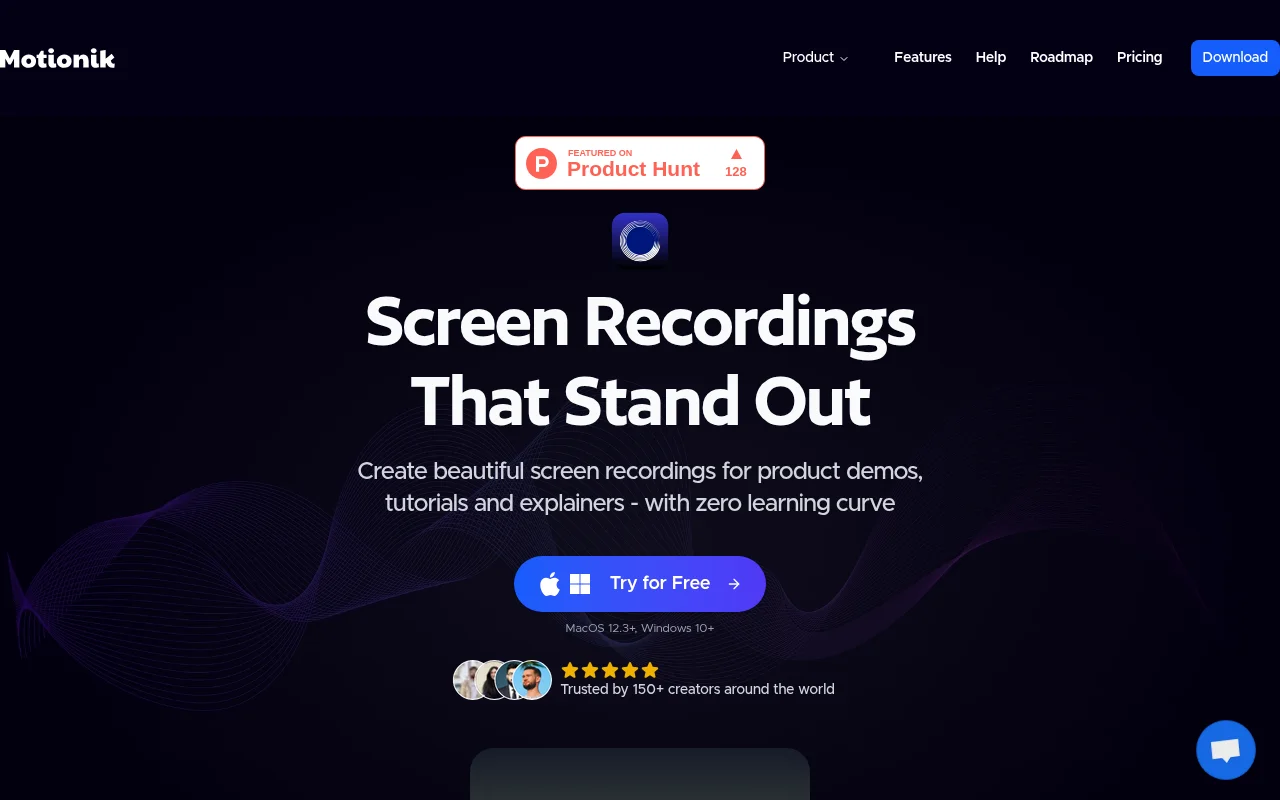
Motionik is a screen recording tool designed for Windows and macOS systems. It integrates recording, auto-zooming and editing functions, allowing users to create professional-grade product demonstrations, tutorials and promotional videos in minutes without the need to switch between multiple applications. The main advantage of this product is that it is easy to operate and has zero learning curve. Even inexperienced users can easily get started. It is rich in functions, covering a variety of practical functions such as automatic scaling, adding overlays, and custom cursors. It has excellent effects and can generate smooth, natural, and beautiful videos. The product background information has not been mentioned yet. A free trial is provided. The specific paid price is not displayed on the page. Its positioning is to help users create high-quality screen recording videos efficiently.
Demand group:
["Product Demonstrator: Motionik 's automatic zoom and rich editing functions can help product demonstrators easily create professional and vivid product demonstration videos, highlighting the key features and operation steps of the product, attracting the attention of potential customers.", "Tutorial Creator: For tutorial creators, Motionik 's functions such as adding overlays, webcams, and audio recording are very useful. They can enrich tutorial content by adding text, images, and audio tracks, and use webcams to show their operation processes to make tutorials more intuitive and understandable.", "Trainers: Trainers can use Motionik 's various functions to create high-quality training videos. For example, the auto-zoom function can focus on important knowledge points, and the video trimming function can remove unnecessary parts to make the training video more refined and efficient.", "Marketers: Marketers can use Motionik to create promotional videos, make the video consistent with the brand style through the appearance customization function, and use various special effects and functions to attract target audiences and improve marketing effectiveness."]
Example of usage scenario:
Product managers use Motionik to record product demonstration videos to show new features and operating procedures of the product for introduction to team members and customers.
Teachers use Motionik to create teaching videos, combined with webcam and audio recording functions, to vividly explain course content and facilitate students' review after class.
Self-media creators use Motionik to create software tutorial videos. By adding features such as overlays and custom cursors, they make the videos more lively and interesting, attracting more fans.
Product features:
Auto-zoom function: Motionik has an auto-zoom feature, which can automatically adjust the picture according to the user's operations, so that important parts of the recording process can be highlighted. Users can also manually adjust zoom level and position, and control zoom animations for smooth, customizable zoom transitions, as well as control panning behavior when zooming.
Add overlay function: Users can easily add various overlays to videos, such as text, images, highlights, audio tracks, etc., making the video more interesting and informative. Among them, the audio track function allows users to easily add background music or narration; the text function can be used to add titles, subtitles and annotations; and the image function allows users to enhance the video effect with logos, icons and graphics.
Magic cursor function: Through Motionik 's cursor tracking technology, the recorded video can obtain natural and smooth animation effects, and the cursor will follow every movement of the mouse. Users can also customize the cursor, including settings for animation effects, automatic hiding, smoothness, etc. In addition, users can control click animations, highlight interactive effects, adjust click speed, add click sound effects, and customize click easing effects and click effect styles.
Webcam and audio recording capabilities: Motionik allows users to record using their webcam, microphone, and system sound to make videos more impactful. Users can easily include webcam and microphone inputs in their recordings, freely control the camera's position, show or hide the camera feed at specific times during the recording, and the camera size automatically adjusts based on zoom.
Video trimming function: Users can trim videos accurately, remove unnecessary parts, and keep only the important content, making the video more refined and professional.
Appearance customization: Motionik allows users to have complete control over the appearance of their videos, customizing everything from backgrounds to details like shadows and rounded corners to create professional videos that are consistent with your brand’s style and message. For example, add depth and emphasis to video elements with insets and drop shadow effects, and use rounded corners to make video elements look more modern.
Content Masking and Highlights: Users can use content masks to hide sensitive information while using highlights to draw the viewer's attention to important areas.
Multi-format export function: The product supports video export in multiple formats and ratios. Users can choose appropriate export options according to their needs, and can save videos in multiple formats and qualities.
Usage tutorial:
Step 1: Visit the official Motionik website (https://Motionik.com), download and install the desktop client for Windows or macOS.
Step 2: Open the Motionik client and select the screen area to record as needed, which can be the entire screen, part of the screen or a specific window.
Step 3: Before recording, adjust relevant settings, such as turning on the auto-zoom function, setting the zoom level and animation effects; adding overlays, such as text, images, audio, etc.; customizing the cursor style and click effects.
Step 4: Start recording. During the recording process, you can use manual zoom, pan and other functions as needed. At the same time, you can adjust the camera position, show or hide the camera screen at any time.
Step 5: After the recording is completed, edit the video, use the trim function to remove unnecessary parts, add content masks and highlights, adjust the video appearance, etc.
Step 6: After editing is completed, select the appropriate format and ratio to export and save it as the desired video file.