Meta launches new AI chatbot features: actively sending messages to improve interactive experience
2396

English
This article teaches you how to use ComfyUI text to generate pictures and go directly to the tutorial.
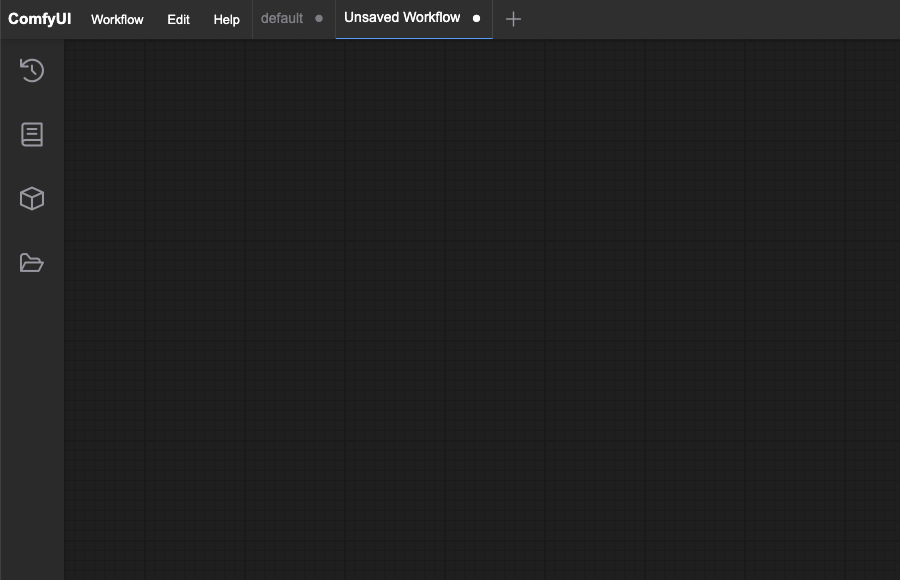
Step 1: Open ComfyUI and enter the initial interface
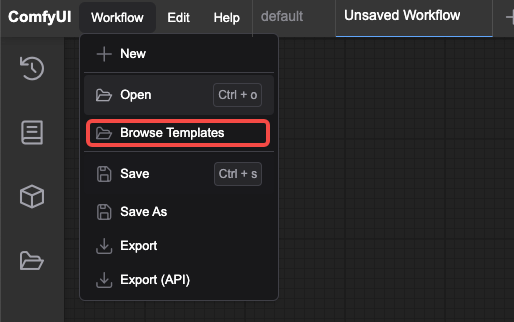
Step 2: Click workflow to select Browse Templates
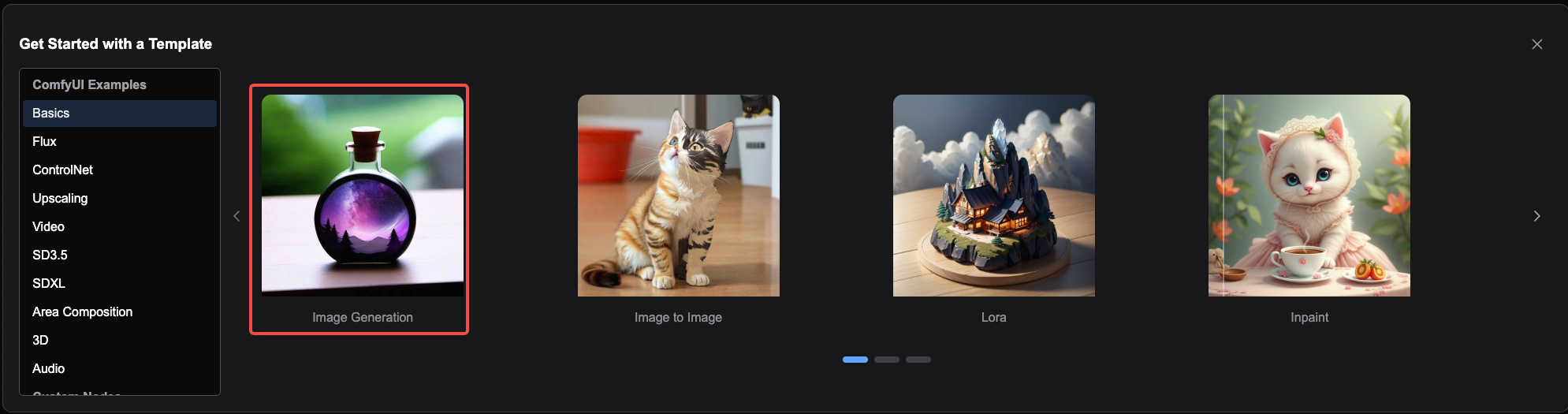
Step 3: Click Basics to select lmage Generation
Step 4: This interface will appear after clicking
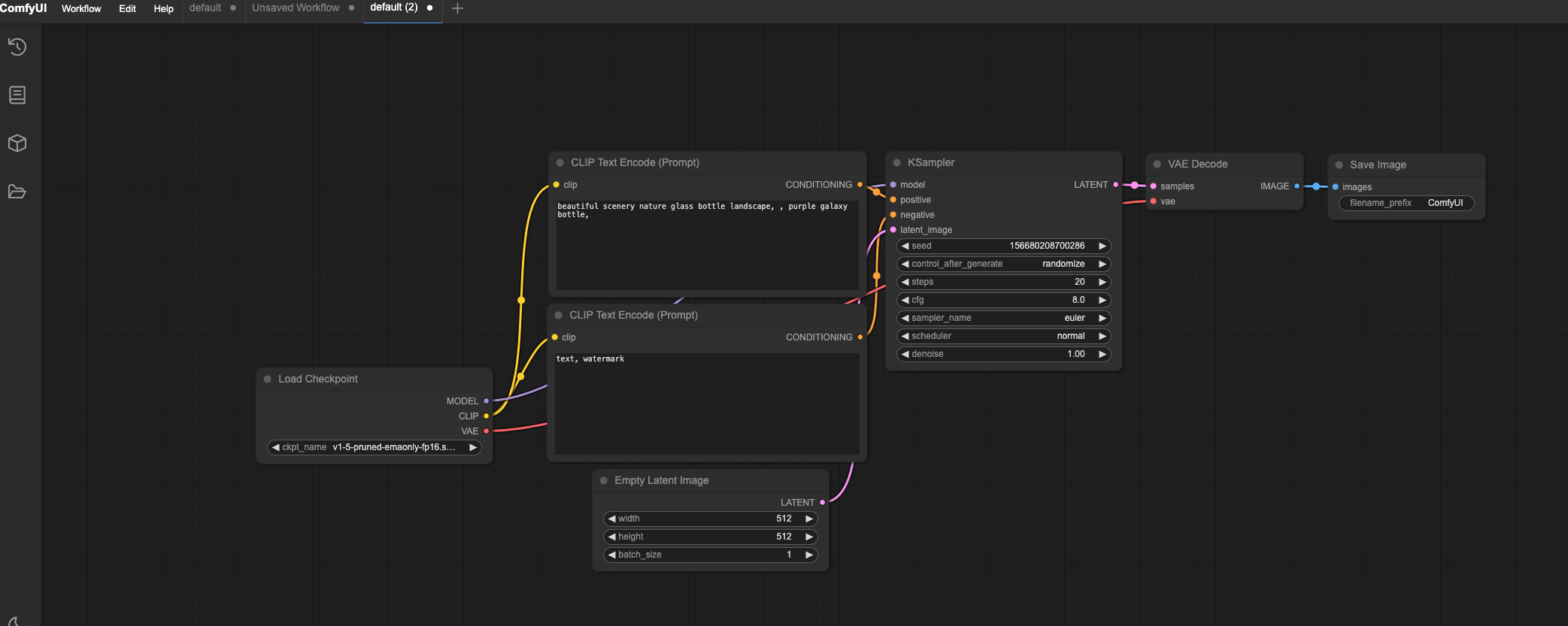
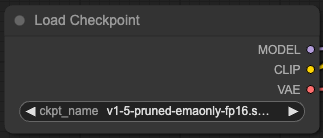
Step 5: Laod Checkpoint needs to load the model. If you want it, add the corresponding model.
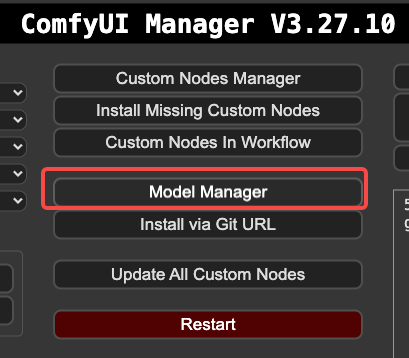
The model can be found in the manager

Click Model Manager to find it
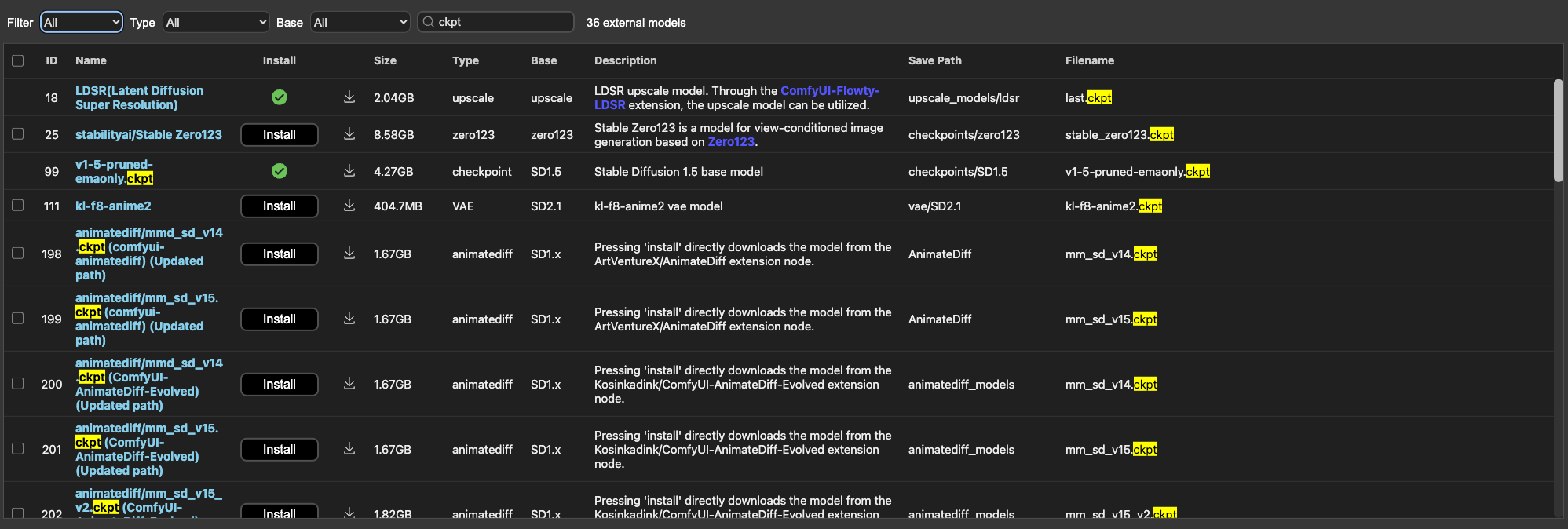
If your video memory and memory are relatively low, just select a small capacity model, otherwise an error will occur.
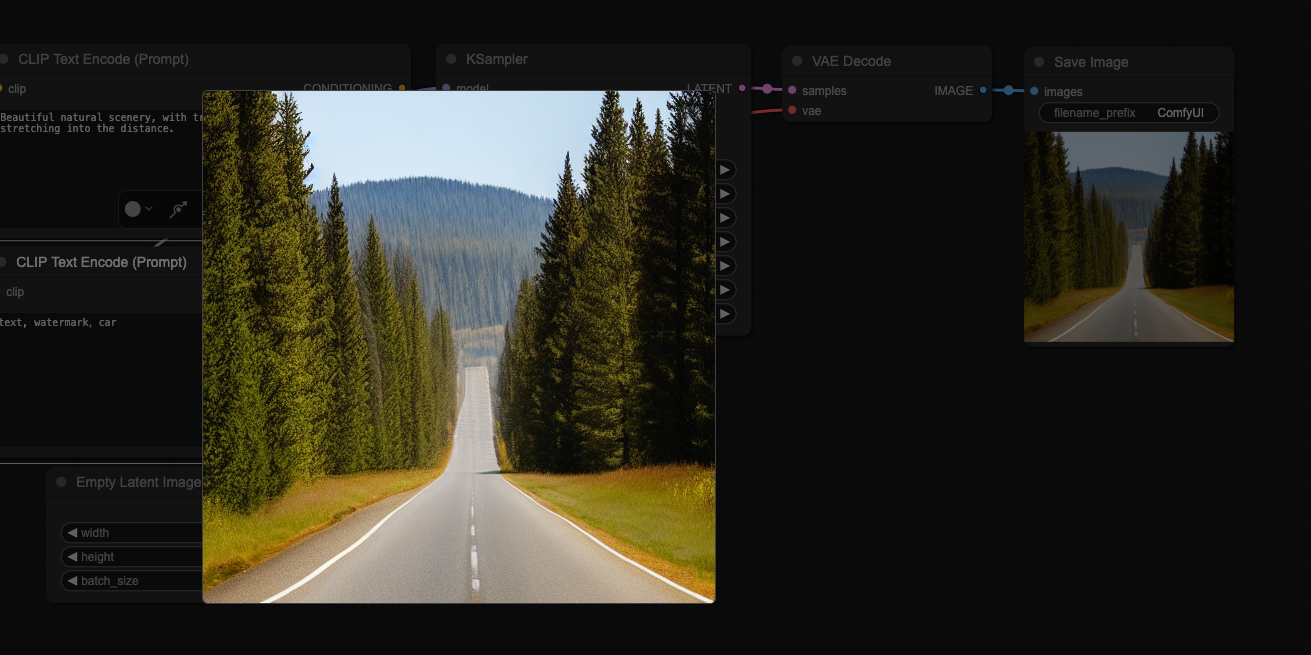
Step 6. After selecting the model, enter your text and the keywords you want to block (enter the generated text above and enter the blocked keywords below), and click Generate to run.
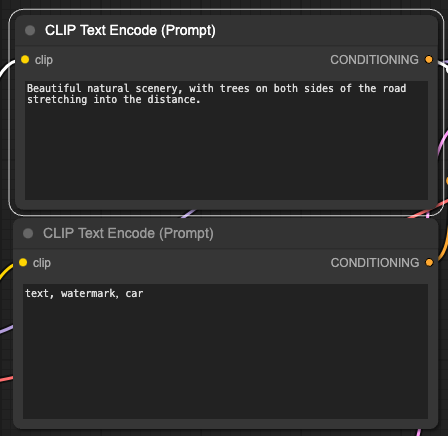
Case: Enter Beautiful natural scenery, with trees on both sides of the road stretching into the distance., block text, watermark, and car, and keep the picture neat.
Step 7: Click Queue to generate the picture and wait for a few minutes

Final rendering display