
中文(繁體)
中文(繁體)
Meta推AI聊天機器人新功能:主動發送消息提升互動體驗
Abacus.AI重磅推出DeepAgent,全能AI助手引領企業智能化轉型
大模型時代,通用視覺模型將何去何從?
X平台試點AI生成“社區筆記”,Grok接入信息核查流程
Gemini 模型可以處理圖片,從而支持許多先進的開發者用例,而這些用例在過去需要使用特定領域的模型。 Gemini 的部分視覺功能包括:
1.為圖片添加文字說明並回答與圖片相關的問題
2.轉寫和推理PDF 文件(最多包含200 萬個令牌)
3.檢測圖片中的對象並返回其邊界框坐標
4.分割圖片中的對象
Gemini 從一開始就具有多模態特性,我們將繼續突破可能的邊界。
在調用Gemini API 之前,請確保您已安裝所選的SDK,並已配置好Gemini API 密鑰,可以使用。
您可以通過以下方式將圖片作為輸入提供給Gemini:
1. 使用File API 上傳圖片文件,然後再向generateContent 發出請求。對於大於20MB 的文件,或者您想在多個請求中重複使用文件時,請使用此方法。
2. 將內嵌圖片數據通過請求傳遞給generateContent。請對較小的文件(總請求大小小於20MB)或直接從網址提取的圖片使用此方法。
您可以使用Files API 上傳圖片文件。如果請求總大小(包括文件、文本提示、系統說明等)超過20 MB,或者您打算在多個提示中使用同一張圖片,請始終使用Files API。
以下代碼會上傳圖片文件,然後在調用generateContent 時使用該文件。
 from google import genai
client = genai.Client(api_key="GOOGLE_API_KEY")
my_file = client.files.upload(file="path/to/sample.jpg")
response = client.models.generate_content(
   model="gemini-2.0-flash",
   contents=[my_file, "Caption this image."],
)
print(response.text)
 import {
 GoogleGenAI,
 createUserContent,
 createPartFromUri,
} from "@google/genai";
const ai = new GoogleGenAI({ apiKey: "GOOGLE_API_KEY" });
async function main() {
 const myfile = await ai.files.upload({
   file: "path/to/sample.jpg",
   config: { mimeType: "image/jpeg" },
 });
 const response = await ai.models.generateContent({
   model: "gemini-2.0-flash",
   contents: createUserContent([
     createPartFromUri(myfile.uri, myfile.mimeType),
     "Caption this image.",
   ]),
 });
 console.log(response.text);
}
await main(); file, err := client.UploadFileFromPath(ctx, "path/to/sample.jpg", nil)
if err != nil {
log.Fatal(err)
}
defer client.DeleteFile(ctx, file.Name)
model := client.GenerativeModel("gemini-2.0-flash")
resp, err := model.GenerateContent(ctx,
genai.FileData{URI: file.URI},
genai.Text("Caption this image."))
if err != nil {
log.Fatal(err)
}
printResponse(resp) IMAGE_PATH="path/to/sample.jpg"
MIME_TYPE=$(file -b --mime-type "${IMAGE_PATH}")
NUM_BYTES=$(wc -c < "${IMAGE_PATH}")
DISPLAY_NAME=IMAGE
tmp_header_file=upload-header.tmp
# Initial resumable request defining metadata.
# The upload url is in the response headers dump them to a file.
curl "https://generativelanguage.googleapis.com/upload/v1beta/files?key=${GOOGLE_API_KEY}"
-D upload-header.tmp
-H "X-Goog-Upload-Protocol: resumable"
-H "X-Goog-Upload-Command: start"
-H "X-Goog-Upload-Header-Content-Length: ${NUM_BYTES}"
-H "X-Goog-Upload-Header-Content-Type: ${MIME_TYPE}"
-H "Content-Type: application/json"
-d "{'file': {'display_name': '${DISPLAY_NAME}'}}" 2> /dev/null
upload_url=$(grep -i "x-goog-upload-url: " "${tmp_header_file}" | cut -d" " -f2 | tr -d "r")
rm "${tmp_header_file}"
# Upload the actual bytes.
curl "${upload_url}"
-H "Content-Length: ${NUM_BYTES}"
-H "X-Goog-Upload-Offset: 0"
-H "X-Goog-Upload-Command: upload, finalize"
--data-binary "@${IMAGE_PATH}" 2> /dev/null > file_info.json
file_uri=$(jq ".file.uri" file_info.json)
echo file_uri=$file_uri
# Now generate content using that file
curl "https://generativelanguage.googleapis.com/v1beta/models/gemini-2.0-flash:generateContent?key=$GOOGLE_API_KEY"
-H 'Content-Type: application/json'
-X POST
-d '{
"contents": [{
"parts":[
{"file_data":{"mime_type": "${MIME_TYPE}", "file_uri": '$file_uri'}},
{"text": "Caption this image."}]
}]
}' 2> /dev/null > response.json
cat response.json
echo
jq ".candidates[].content.parts[].text" response.json如需詳細了解如何處理媒體文件,請參閱Files API。
您可以將請求中的內嵌圖片數據傳遞給generateContent,而無需上傳圖片文件。這適用於較小的圖片(總請求大小小於20MB)或直接從網址提取的圖片。
您可以以Base64 編碼字符串的形式提供圖片數據,也可以直接讀取本地文件(具體取決於SDK)。
本地圖片文件:
 from google.genai import types
 with open('path/to/small-sample.jpg', 'rb') as f:
     image_bytes = f.read()
 response = client.models.generate_content(
   model='gemini-2.0-flash',
   contents=[
     types.Part.from_bytes(
       data=image_bytes,
       mime_type='image/jpeg',
     ),
     'Caption this image.'
   ]
 )
print(response.text) from google.genai import types
import { GoogleGenAI } from "@google/genai";
import * as fs from "node:fs";
const ai = new GoogleGenAI({ apiKey: "GOOGLE_API_KEY" });
const base64ImageFile = fs.readFileSync("path/to/small-sample.jpg", {
encoding: "base64",
});
const contents = [
{
inlineData: {
mimeType: "image/jpeg",
data: base64ImageFile,
},
},
{ text: "Caption this image." },
];
const response = await ai.models.generateContent({
model: "gemini-2.0-flash",
contents: contents,
});
console.log(response.text); from google.genai import types
model := client.GenerativeModel("gemini-2.0-flash")
bytes, err := os.ReadFile("path/to/small-sample.jpg")
if err != nil {
log.Fatal(err)
}
prompt := []genai.Part{
genai.Blob{MIMEType: "image/jpeg", Data: bytes},
genai.Text("Caption this image."),
}
resp, err := model.GenerateContent(ctx, prompt...)
if err != nil {
log.Fatal(err)
}
for _, c := range resp.Candidates {
if c.Content != nil {
fmt.Println(*c.Content)
}
} from google.genai import types
IMG_PATH=/path/to/your/image1.jpg
if [[ "$(base64 --version 2>&1)" = *"FreeBSD"* ]]; then
B64FLAGS="--input"
else
B64FLAGS="-w0"
fi
curl "https://generativelanguage.googleapis.com/v1beta/models/gemini-2.0-flash:generateContent?key=$GOOGLE_API_KEY"
-H 'Content-Type: application/json'
-X POST
-d '{
"contents": [{
"parts":[
{
"inline_data": {
"mime_type":"image/jpeg",
"data": "'$(base64 $B64FLAGS $IMG_PATH)'"
}
},
{"text": "Caption this image."},
]
}]
}' 2> /dev/null通過網址添加的圖片:
 from google.genai import types
from google import genai
from google.genai import types
import requests
image_path = "https://goo.gle/instrument-img"
image_bytes = requests.get(image_path).content
image = types.Part.from_bytes(
 data=image_bytes, mime_type="image/jpeg"
)
client = genai.Client(api_key="GOOGLE_API_KEY")
response = client.models.generate_content(
   model="gemini-2.0-flash-exp",
   contents=["What is this image?", image],
)
print(response.text)
 from google.genai import types
import { GoogleGenAI } from "@google/genai";
async function main() {
 const ai = new GoogleGenAI({ apiKey: process.env.GOOGLE_API_KEY });
 const imageUrl = "https://goo.gle/instrument-img";
 const response = await fetch(imageUrl);
 const imageArrayBuffer = await response.arrayBuffer();
 const base64ImageData = Buffer.from(imageArrayBuffer).toString('base64');
 const result = await ai.models.generateContent({
   model: "gemini-2.0-flash",
   contents: [
   {
     inlineData: {
       mimeType: 'image/jpeg',
       data: base64ImageData,
     },
   },
   { text: "Caption this image." }
 ],
 });
 console.log(result.text);
}
main(); from google.genai import types
func main() {
ctx := context.Background()
client, err := genai.NewClient(ctx, option.WithAPIKey(os.Getenv("GOOGLE_API_KEY")))
if err != nil {
log.Fatal(err)
}
defer client.Close()
model := client.GenerativeModel("gemini-2.0-flash")
// Download the image.
imageResp, err := http.Get("https://goo.gle/instrument-img")
if err != nil {
panic(err)
}
defer imageResp.Body.Close()
imageBytes, err := io.ReadAll(imageResp.Body)
if err != nil {
panic(err)
}
// Create the request.
req := []genai.Part{
genai.ImageData("jpeg", imageBytes),
genai.Text("Caption this image."),
}
// Generate content.
resp, err := model.GenerateContent(ctx, req...)
if err != nil {
panic(err)
}
// Handle the response of generated text.
for _, c := range resp.Candidates {
if c.Content != nil {
fmt.Println(*c.Content)
}
}
} from google.genai import types
IMG_URL="https://goo.gle/instrument-img"
MIME_TYPE=$(curl -sIL "$IMG_URL" | grep -i '^content-type:' | awk -F ': ' '{print $2}' | sed 's/r$//' | head -n 1)
if [[ -z "$MIME_TYPE" || ! "$MIME_TYPE" == image/* ]]; then
MIME_TYPE="image/jpeg"
fi
if [[ "$(base64 --version 2>&1)" = *"FreeBSD"* ]]; then
B64FLAGS="--input"
else
B64FLAGS="-w0"
fi
curl "https://generativelanguage.googleapis.com/v1beta/models/gemini-2.0-flash:generateContent?key=$GOOGLE_API_KEY"
-H 'Content-Type: application/json'
-X POST
-d '{
"contents": [{
"parts":[
{
"inline_data": {
"mime_type":"'"$MIME_TYPE"'",
"data": "'$(curl -sL "$IMG_URL" | base64 $B64FLAGS)'"
}
},
{"text": "Caption this image."}
]
}]
}' 2> /dev/null關於內嵌圖片數據,請注意以下幾點:
請求的總大小上限為20 MB,其中包括文字提示、系統說明和內嵌提供的所有文件。如果文件大小會導致請求總大小超過20 MB,請使用Files API 上傳圖片文件以在請求中使用。
如果您要多次使用圖片示例,則使用File API 上傳圖片文件會更高效。
您可以在單個問題中提供多張圖片,方法是在contents 數組中添加多個圖片Part 對象。這些數據可以是內嵌數據(本地文件或網址)和File API 引用的混合。
 from google.genai import types
from google import genai
from google.genai import types
client = genai.Client(api_key="GOOGLE_API_KEY")
# Upload the first image
image1_path = "path/to/image1.jpg"
uploaded_file = client.files.upload(file=image1_path)
# Prepare the second image as inline data
image2_path = "path/to/image2.png"
with open(image2_path, 'rb') as f:
   img2_bytes = f.read()
# Create the prompt with text and multiple images
response = client.models.generate_content(
   model="gemini-2.0-flash",
   contents=[
       "What is different between these two images?",
       uploaded_file,  # Use the uploaded file reference
       types.Part.from_bytes(
           data=img2_bytes,
           mime_type='image/png'
       )
   ]
)
print(response.text)
 from google.genai import types
import {
 GoogleGenAI,
 createUserContent,
 createPartFromUri,
} from "@google/genai";
import * as fs from "node:fs";
const ai = new GoogleGenAI({ apiKey: "GOOGLE_API_KEY" });
async function main() {
 // Upload the first image
 const image1_path = "path/to/image1.jpg";
 const uploadedFile = await ai.files.upload({
   file: image1_path,
   config: { mimeType: "image/jpeg" },
 });
 // Prepare the second image as inline data
 const image2_path = "path/to/image2.png";
 const base64Image2File = fs.readFileSync(image2_path, {
   encoding: "base64",
 });
 // Create the prompt with text and multiple images
 const response = await ai.models.generateContent({
   model: "gemini-2.0-flash",
   contents: createUserContent([
     "What is different between these two images?",
     createPartFromUri(uploadedFile.uri, uploadedFile.mimeType),
     {
       inlineData: {
         mimeType: "image/png",
         data: base64Image2File,
       },
     },
   ]),
 });
 console.log(response.text);
}
await main(); from google.genai import types
+ // Upload the first image
image1Path := "path/to/image1.jpg"
uploadedFile, err := client.UploadFileFromPath(ctx, image1Path, nil)
if err != nil {
log.Fatal(err)
}
defer client.DeleteFile(ctx, uploadedFile.Name)
// Prepare the second image as inline data
image2Path := "path/to/image2.png"
img2Bytes, err := os.ReadFile(image2Path)
if err != nil {
log.Fatal(err)
}
// Create the prompt with text and multiple images
model := client.GenerativeModel("gemini-2.0-flash")
prompt := []genai.Part{
genai.Text("What is different between these two images?"),
genai.FileData{URI: uploadedFile.URI},
genai.Blob{MIMEType: "image/png", Data: img2Bytes},
}
resp, err := model.GenerateContent(ctx, prompt...)
if err != nil {
log.Fatal(err)
}
printResponse(resp) from google.genai import types
# Upload the first image
IMAGE1_PATH="path/to/image1.jpg"
MIME1_TYPE=$(file -b --mime-type "${IMAGE1_PATH}")
NUM1_BYTES=$(wc -c < "${IMAGE1_PATH}")
DISPLAY_NAME1=IMAGE1
tmp_header_file1=upload-header1.tmp
curl "https://generativelanguage.googleapis.com/upload/v1beta/files?key=${GOOGLE_API_KEY}"
-D upload-header1.tmp
-H "X-Goog-Upload-Protocol: resumable"
-H "X-Goog-Upload-Command: start"
-H "X-Goog-Upload-Header-Content-Length: ${NUM1_BYTES}"
-H "X-Goog-Upload-Header-Content-Type: ${MIME1_TYPE}"
-H "Content-Type: application/json"
-d "{'file': {'display_name': '${DISPLAY_NAME1}'}}" 2> /dev/null
upload_url1=$(grep -i "x-goog-upload-url: " "${tmp_header_file1}" | cut -d" " -f2 | tr -d "r")
rm "${tmp_header_file1}"
curl "${upload_url1}"
-H "Content-Length: ${NUM1_BYTES}"
-H "X-Goog-Upload-Offset: 0"
-H "X-Goog-Upload-Command: upload, finalize"
--data-binary "@${IMAGE1_PATH}" 2> /dev/null > file_info1.json
file1_uri=$(jq ".file.uri" file_info1.json)
echo file1_uri=$file1_uri
# Prepare the second image (inline)
IMAGE2_PATH="path/to/image2.png"
MIME2_TYPE=$(file -b --mime-type "${IMAGE2_PATH}")
if [[ "$(base64 --version 2>&1)" = *"FreeBSD"* ]]; then
B64FLAGS="--input"
else
B64FLAGS="-w0"
fi
IMAGE2_BASE64=$(base64 $B64FLAGS $IMAGE2_PATH)
# Now generate content using both images
curl "https://generativelanguage.googleapis.com/v1beta/models/gemini-2.0-flash:generateContent?key=$GOOGLE_API_KEY"
-H 'Content-Type: application/json'
-X POST
-d '{
"contents": [{
"parts":[
{"text": "What is different between these two images?"},
{"file_data":{"mime_type": "'"${MIME1_TYPE}"'", "file_uri": '$file1_uri'}},
{
"inline_data": {
"mime_type":"'"${MIME2_TYPE}"'",
"data": "'"$IMAGE2_BASE64"'"
}
}
]
}]
}' 2> /dev/null > response.json
cat response.json
echo
jq ".candidates[].content.parts[].text" response.jsonGemini 模型經過訓練,可識別圖片中的對象並提供其邊界框坐標。返回的坐標相對於圖片尺寸,已縮放到[0, 1000]。您需要根據原始圖片大小縮小這些坐標。
 from google.genai import types
prompt = "Detect the all of the prominent items in the image. The box_2d should be [ymin, xmin, ymax, xmax] normalized to 0-1000."
 from google.genai import types
const prompt = "Detect the all of the prominent items in the image. The box_2d should be [ymin, xmin, ymax, xmax] normalized to 0-1000.";
 from google.genai import types
prompt := []genai.Part{
   genai.FileData{URI: sampleImage.URI},
   genai.Text("Detect the all of the prominent items in the image. The box_2d should be [ymin, xmin, ymax, xmax] normalized to 0-1000."),
}from google.genai import types PROMPT="Detect the all of the prominent items in the image. The box_2d should be [ymin, xmin, ymax, xmax] normalized to 0-1000."
您可以使用邊界框在圖片和視頻中進行對象檢測和定位。通過使用邊界框準確識別和劃分對象,您可以解鎖各種應用並提升項目的智能化水平。
1. 簡單:無論您是否具備計算機視覺專業知識,都可以輕鬆地將對象檢測功能集成到您的應用中。
2. 可自定義:根據自定義指令(例如“I want to see bounding boxes of all the green objects in this image”)生成邊界框,而無需訓練自定義模型。
1. 輸入:提示和關聯的圖片或視頻幀。
2. 輸出:邊界框,採用[y_min, x_min, y_max, x_max] 格式。左上角是原點。 x 軸是水平軸,y 軸是垂直軸。每個圖片的坐標值都進行標準化處理,範圍為0-1000。
3. 可視化:AI Studio 用戶將在界面中看到繪製的邊界框。
對於Python 開發者,請試用2D 空間理解筆記本或實驗性3D 指向筆記本。
該模型會以[y_min, x_min, y_max, x_max] 格式返回邊界框坐標。如需將這些歸一化坐標轉換為原始圖片的像素坐標,請按以下步驟操作:
1. 將每個輸出坐標除以1000。
2. 將x 坐標乘以原始圖片寬度。
3. 將y 坐標乘以原始圖片高度。
如需探索有關生成邊界框坐標並在圖片上直觀呈現這些坐標的更詳細示例,請參閱“對象檢測”食譜示例。
從Gemini 2.5 模型開始,Gemini 模型不僅經過訓練可檢測物品,還可對其進行分割並提供輪廓遮罩。
該模型會預測一個JSON 列表,其中每個項都代表一個分割掩碼。每個項都有一個邊界框(“box_2d”),格式為[y0, x0, y1, x1],歸一化坐標介於0 到1000 之間,一個用於標識對象的標籤(“label”),最後是邊界框內的分割掩碼,以base64 編碼的png 格式表示,即值介於0 到255 之間的概率圖。需要調整遮罩的大小,使其與邊界框的尺寸一致,然後根據置信度閾值進行二值化處理(中點為127)。
 from google.genai import types
prompt = """
 Give the segmentation masks for the wooden and glass items.
 Output a JSON list of segmentation masks where each entry contains the 2D
 bounding box in the key "box_2d", the segmentation mask in key "mask", and
 the text label in the key "label". Use descriptive labels.
"""
 from google.genai import types
const prompt = `
 Give the segmentation masks for the wooden and glass items.
 Output a JSON list of segmentation masks where each entry contains the 2D
 bounding box in the key "box_2d", the segmentation mask in key "mask", and
 the text label in the key "label". Use descriptive labels.
`;
 from google.genai import types
prompt := []genai.Part{
   genai.FileData{URI: sampleImage.URI},
   genai.Text(`
     Give the segmentation masks for the wooden and glass items.
     Output a JSON list of segmentation masks where each entry contains the 2D
     bounding box in the key "box_2d", the segmentation mask in key "mask", and
     the text label in the key "label". Use descriptive labels.
   `),
}from google.genai import types PROMPT=''' Give the segmentation masks for the wooden and glass items. Output a JSON list of segmentation masks where each entry contains the 2D bounding box in the key "box_2d", the segmentation mask in key "mask", and the text label in the key "label". Use descriptive labels. '''
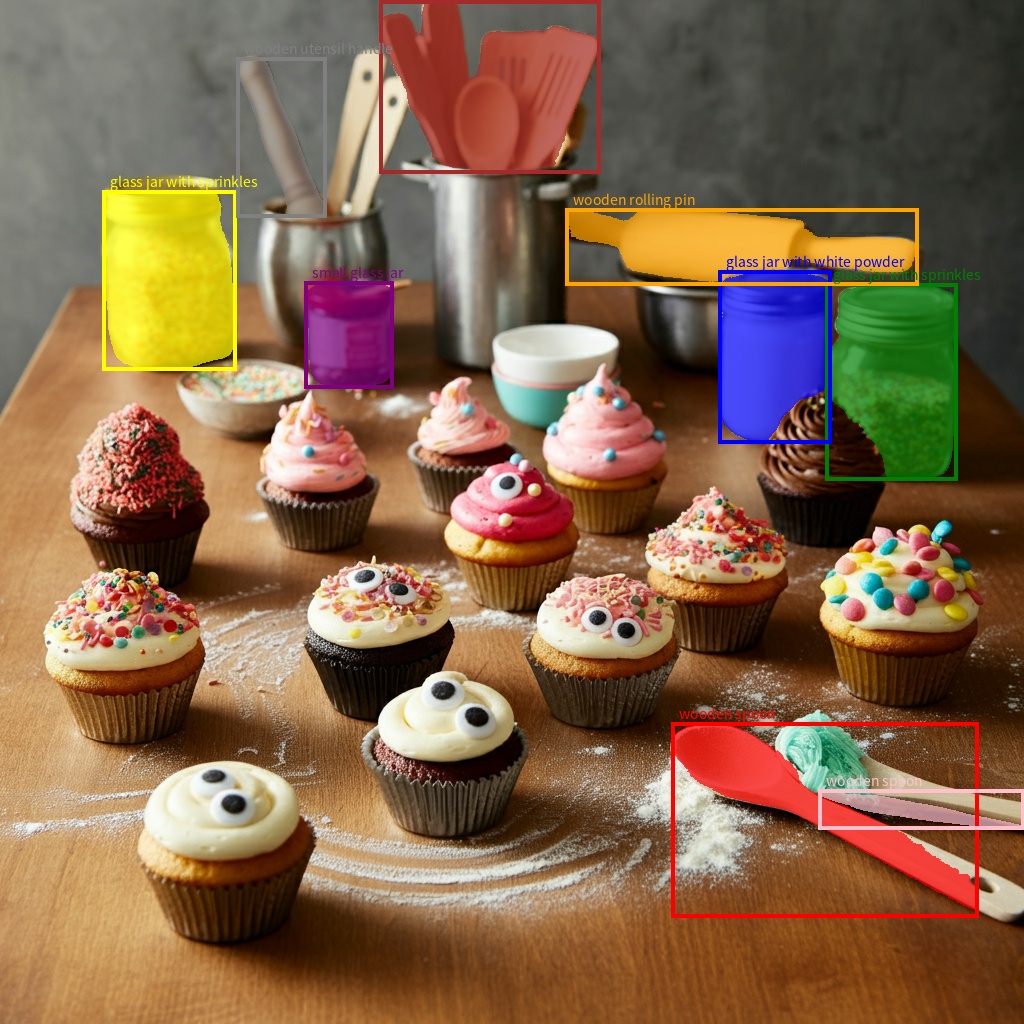
圖片中木製和玻璃物體的遮罩
Gemini 支持以下圖片格式MIME 類型:
1. PNG - image/png
2. JPEG - image/jpeg
3. WEBP - image/webp
4. HEIC - image/heic
5. HEIF - image/heif
1. 文件數量限制:Gemini 2.5 Pro、2.0 Flash、1.5 Pro 和1.5 Flash 支持每個請求最多3,600 個圖片文件。
2. 令牌計算:
Gemini 1.5 Flash 和Gemini 1.5 Pro:如果兩個尺寸均小於等於384 像素,則為258 個令牌。系統會將較大的圖片劃分為多個圖塊(每個圖塊最小256 像素,最大768 像素,調整為768x768),每個圖塊的費用為258 個令牌。
Gemini 2.0 Flash:如果兩個維度均小於或等於384 像素,則為258 個token。系統會將較大的圖片劃分為768x768 像素的圖塊,每個圖塊的費用為258 個令牌。
3. 最佳實踐:
確保圖片已正確旋轉。
使用清晰、不模糊的圖片。
使用帶文本的單張圖片時,請將文本提示放在contents 數組中的圖片部分後面。